
WiFi Configuration
WiFi connectivity status is shown in the top bar of the UserPanel. If the AMR is connected to WiFi, its IP address is displayed beside the WiFi icon.
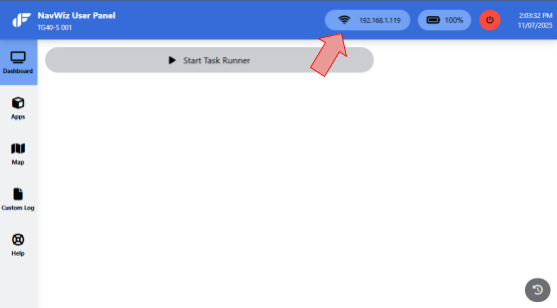
Connect to a WiFi network (DHCP):
- Click the WiFi icon on the top bar of the NavWiz UserPanel.

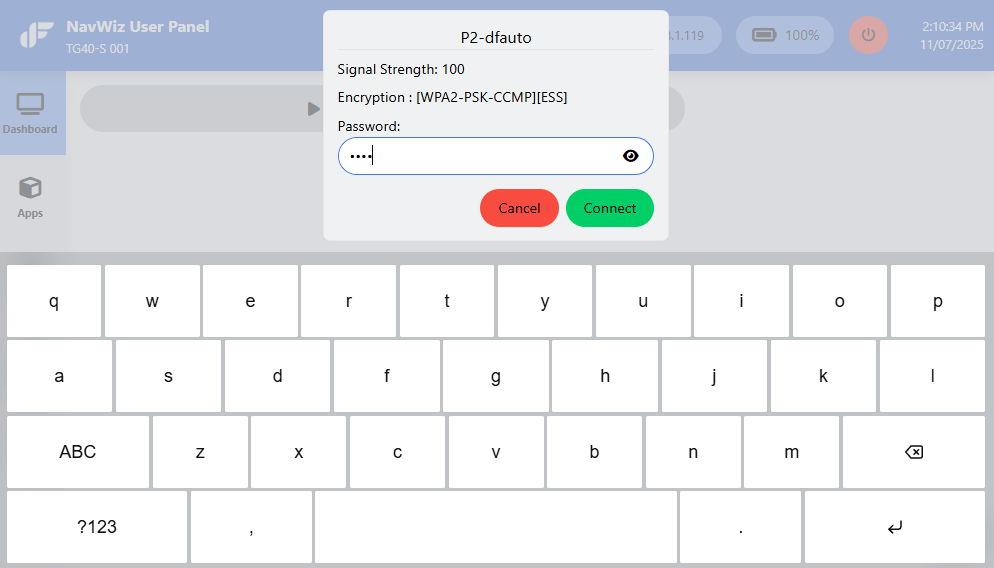
- Select the WiFi network from the list of available networks.
- Enter the password using the on-screen keyboard and click Connect. The connection may take a few minutes depending on signal strength and encryption.
Connect to a hidden WiFi network (DHCP):
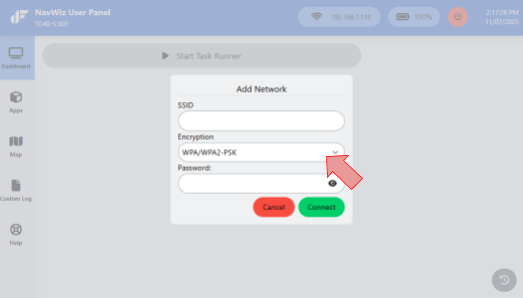
- Click the WiFi icon, then click the + button beside "Add Network".
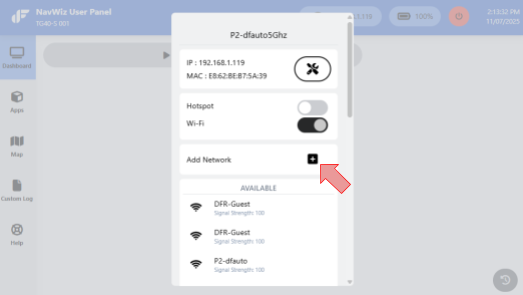
- Provide the SSID (network name) and password. Leave the Encryption field as "WPA/WPA2-PSK" and click Connect.
Connect with a Static IP:
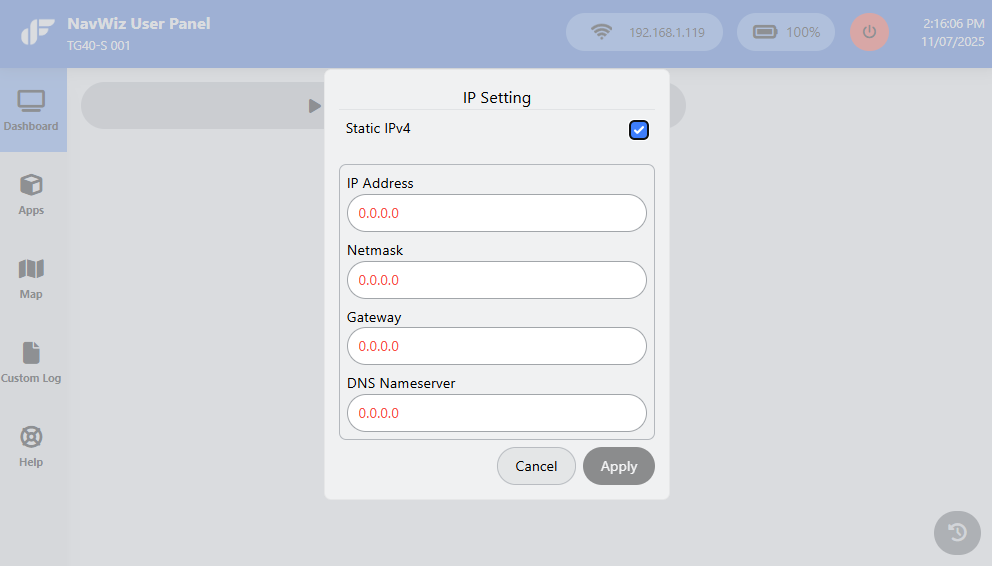
- First connect the AMR to a wireless network. Click the WiFi icon, then click the tools icon next to the AMR IP and MAC address.
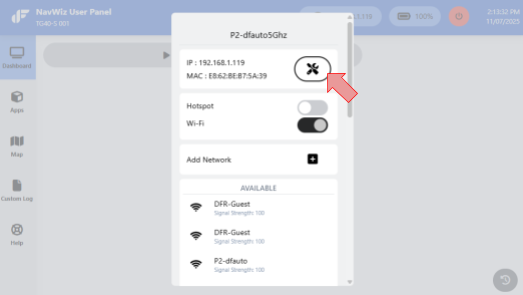
- In the floating panel, click Static IPv4 to open the static IP configuration. Provide all required details (IP address, subnet mask, gateway, DNS) and click Apply.
Access Point (AP) Mode: For sites without WiFi, the AMR can broadcast its own WiFi network for direct laptop/PC connection.
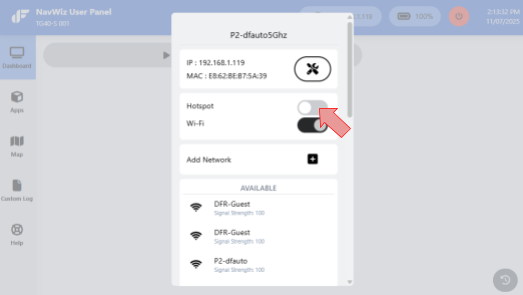
- Click the WiFi icon on the top right corner. Instead of selecting a network from the list, click the Hotspot toggle switch to activate AP mode. The AMR IP address will be shown beside the WiFi icon.
- From a laptop or PC within 10 meters range, scan and connect to the AMR's WiFi network.
WPA2-Enterprise WiFi: NavWiz supports PEAP and EAP-TLS authentication methods.
| Authentication Method | Required Elements |
|---|---|
| PEAP | SSID, CA certificate, identity, password |
| EAP-TLS | SSID, CA certificate, identity, WiFi certificate, WiFi certificate password |
- To connect: Click the + button beside "Add Network", change the Encryption field to WPA/WPA2-EAP, select the authentication method, provide the required credentials (SSID, identity, password for PEAP; SSID and identity for EAP-TLS), and click Connect.
Accessing NavWiz from a PC Browser
Both NavWiz UserPanel and ConfigPanel can be accessed from a laptop or PC connected to the same network as the AMR. The connection can use the site WiFi or the AMR's Access Point mode.
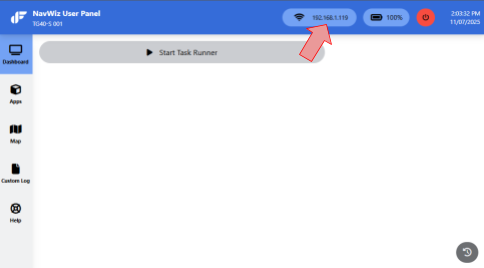
- Get the AMR's IP address from the top bar of the NavWiz UserPanel (e.g., 192.168.1.137).
- Open a web browser (Google Chrome 54.0+ or Mozilla Firefox 49.0+) and enter the AMR's IP address in the address bar.

- By default, the UserPanel shows the Guest account view with only the current running task and Task Queue. To log in, click Guest > Login in the top right corner.
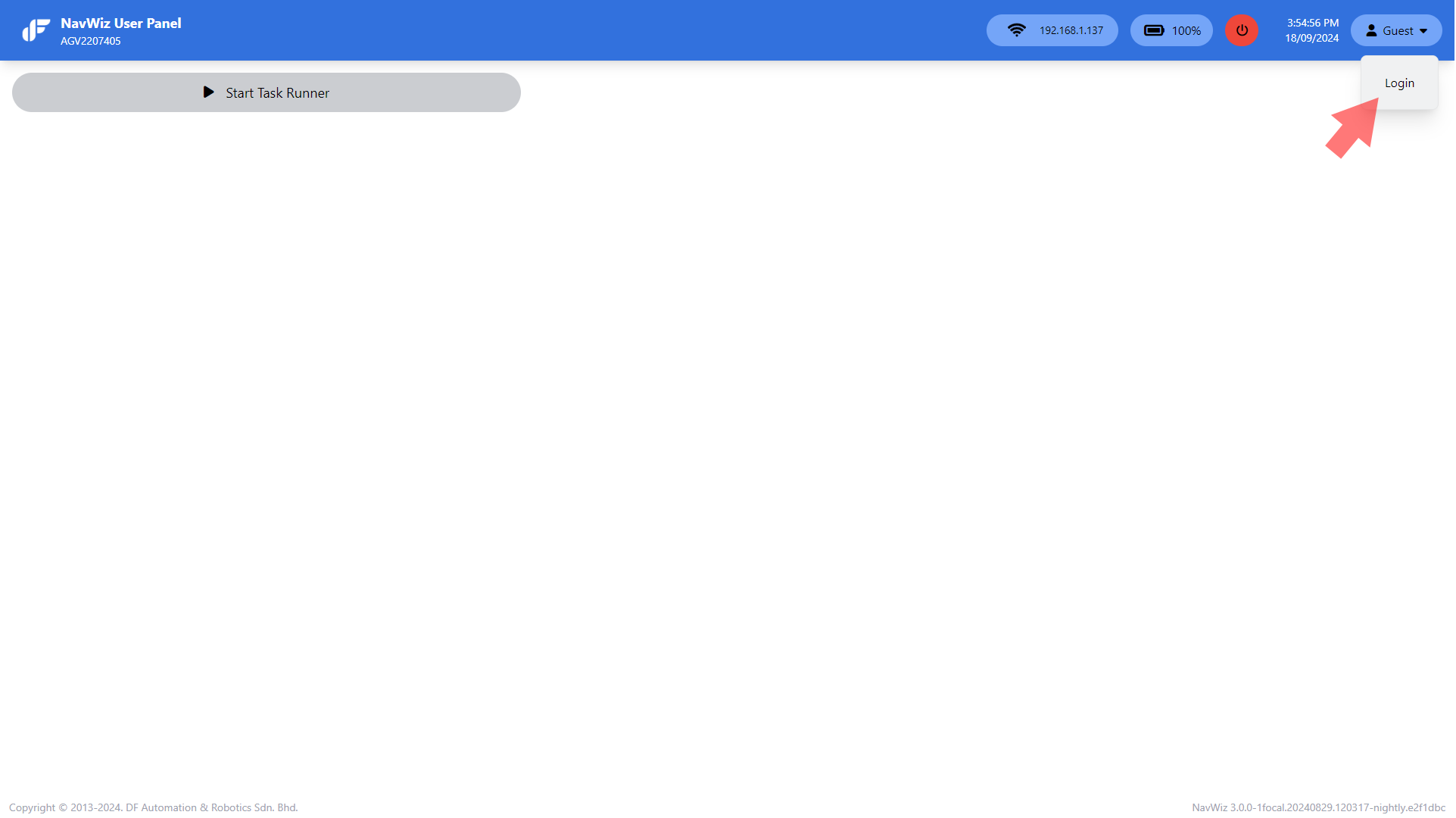
Default login credentials:
| Account Type | Username | Password |
|---|---|---|
| User | user | dfautomation |
| Supervisor | supervisor | dfautomation |