DF Support DF Support

Create And Manage Users

1 min read · Published May 30, 2026 · NavWiz

Create And Manage Users

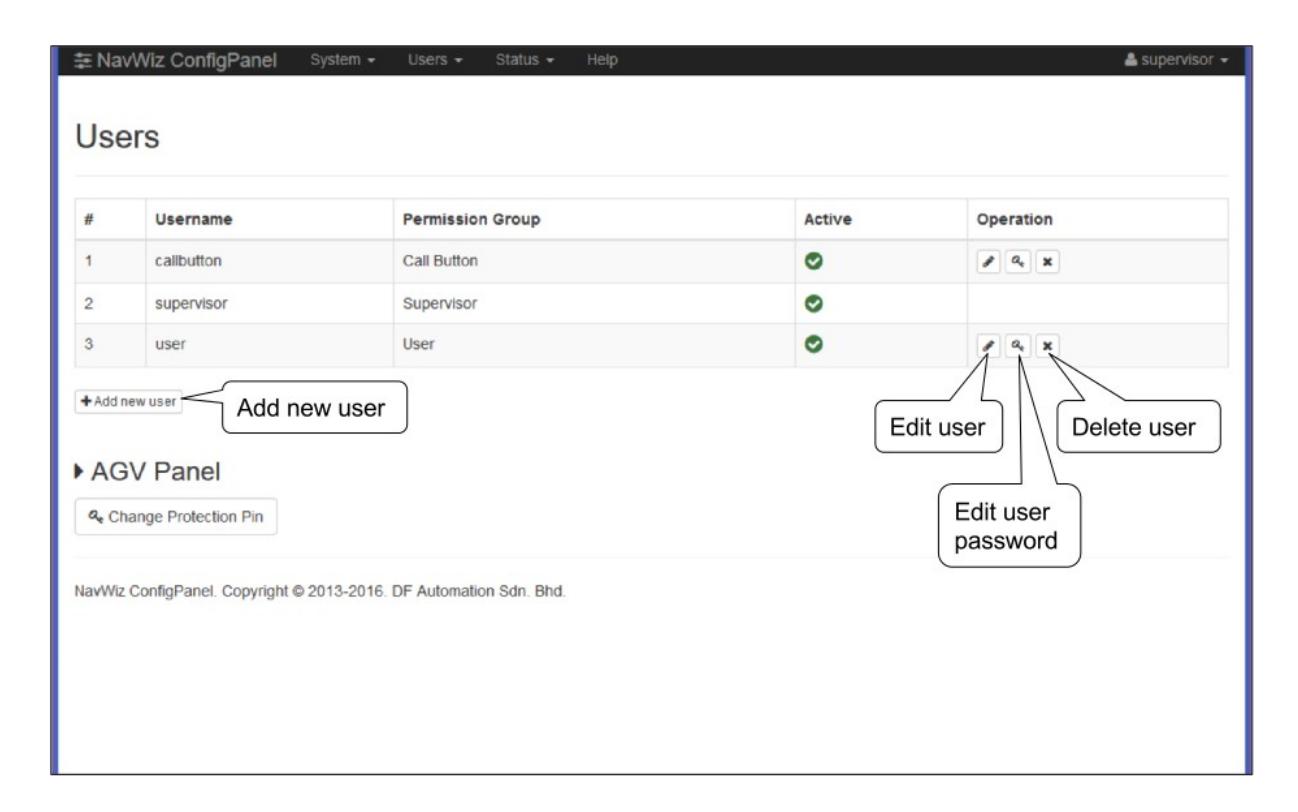
Under Users Page, Supervisor can create new user, delete users and change user password.

  1. To create a new user, click on "Add new user" button. This user will have the same default access as the permission group given.NavWiz ConfigPanel users management screen showing user list and operation icons — This image shows the user management interface where administrators can add, edit, or delete users and change passwords.

Delete User

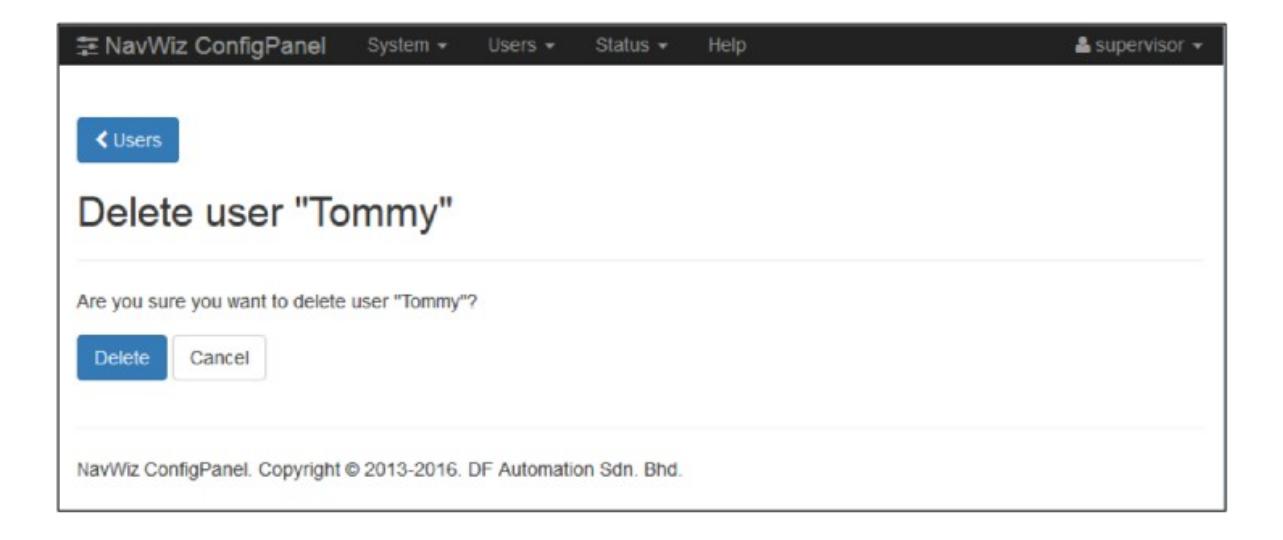
  1. After clicking on the Delete user button, a confirmation message will pop out asking for confirmation about this delete.Confirmation dialog asking if user "Tommy" should be deleted — This image displays a confirmation prompt before permanently deleting a user account from the system.

Change User Password

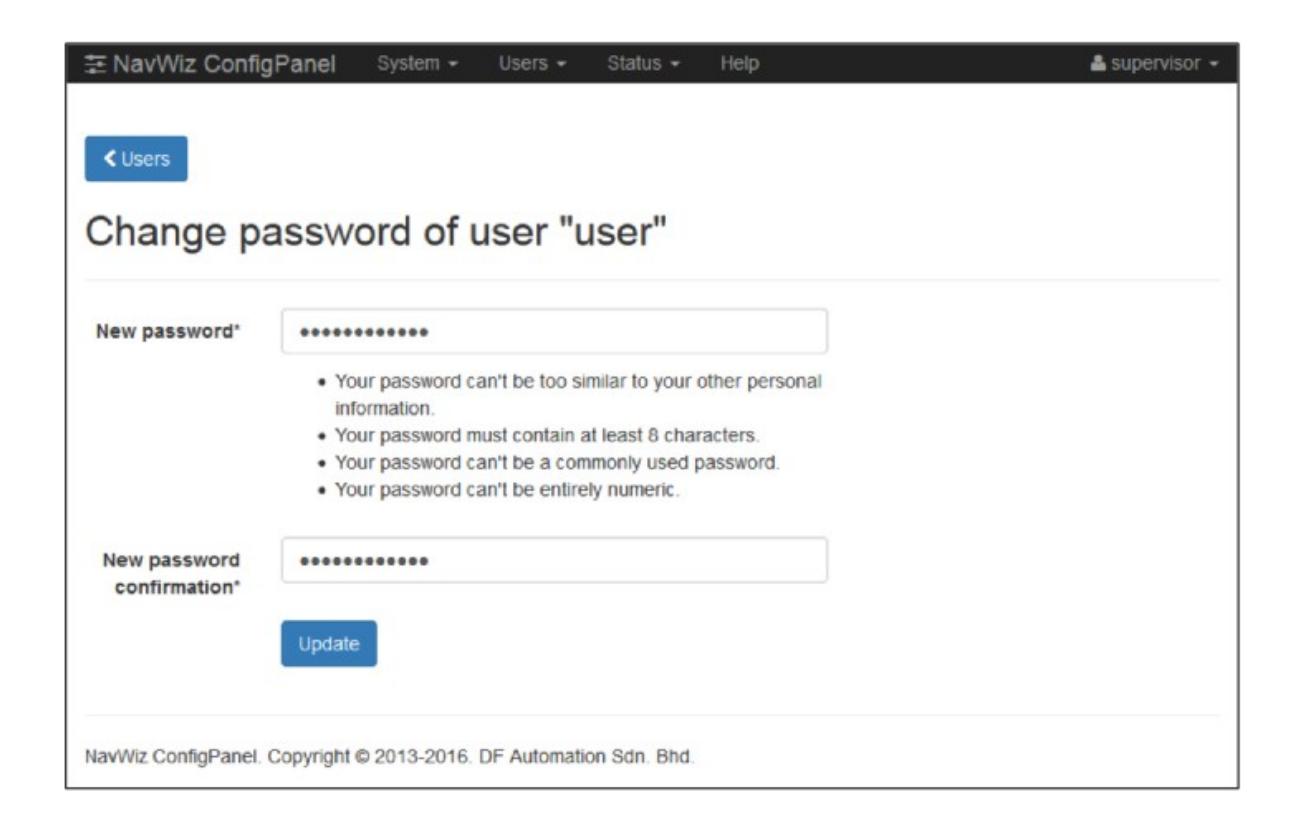
  1. Click on the Change Password button to change the password for user. Another page will pop out asking for new password.Password change form for user "user" with validation rules — This image shows the interface for changing a user's password, including validation rules for security.

Was this article helpful?

Still stuck? How can we help?

Reach out to our support team on WhatsApp for personalized assistance.

Chat with us on WhatsApp

Updated on September 9, 2026