Requirement
- NavWiz Software
Guide
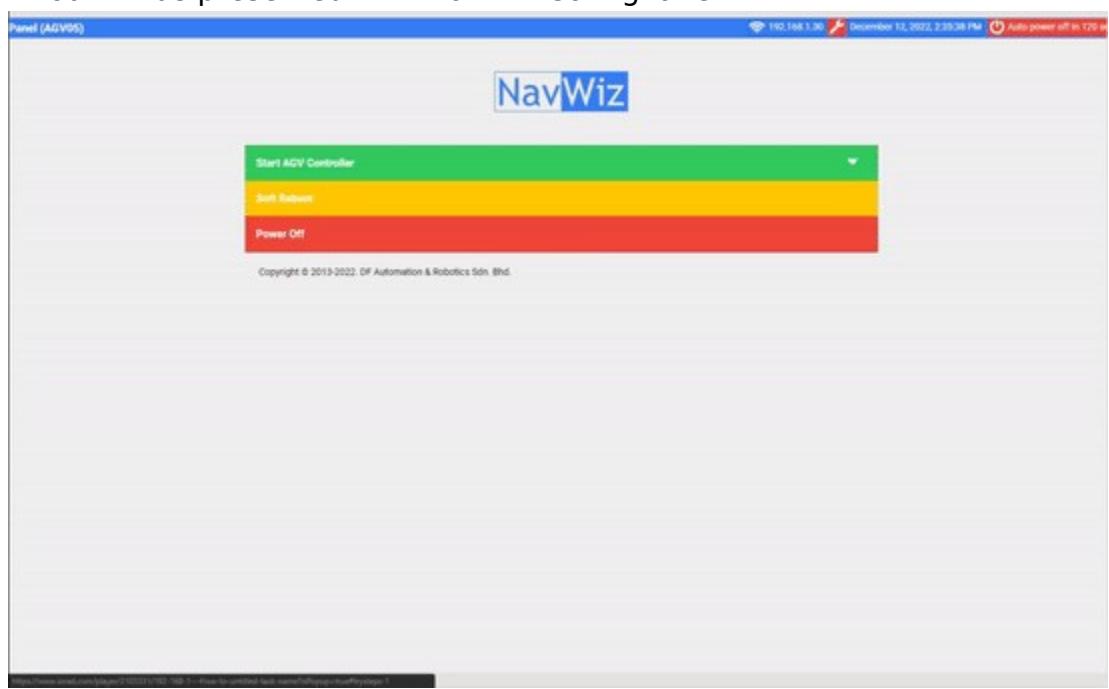
- Access your NavWiz Ip Address using any web browser.
- Since you have Admin access to NavWiz, the top right corner of NavWiz UserPanel will show admin instead of Guest.
- Click on admin at the top right corner of NavWiz UserPanel.
- Click on ConfigPanel from the drop down menu.
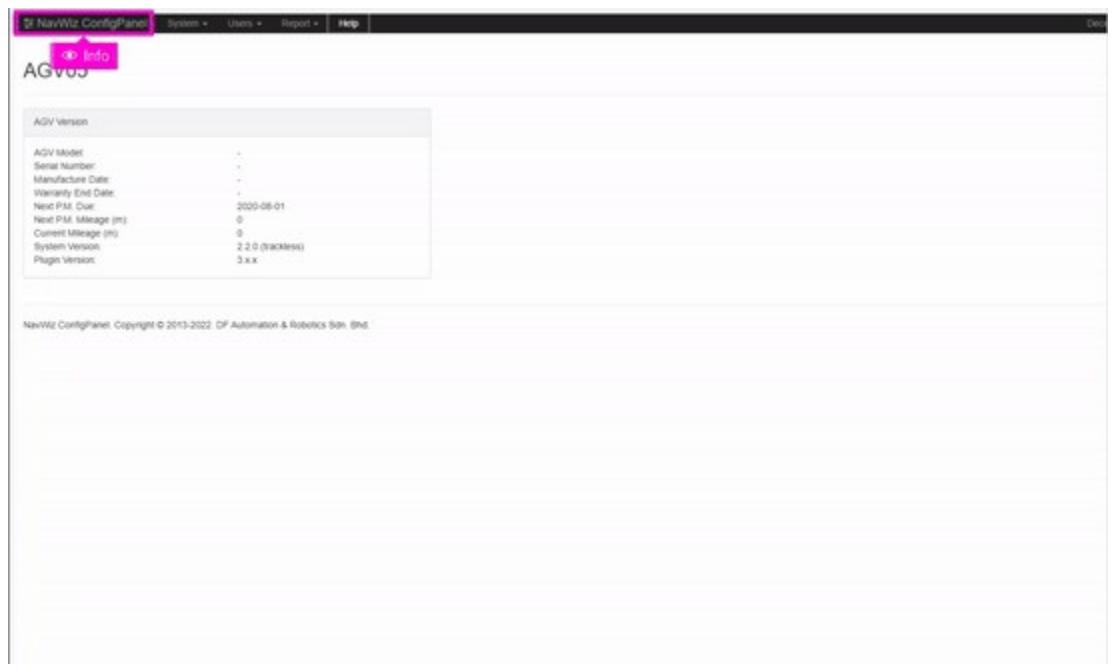
- You will be presented with NavWiz ConfigPanel.
- Click Help from the top bar menu.
- You will be presented with the Help Page.
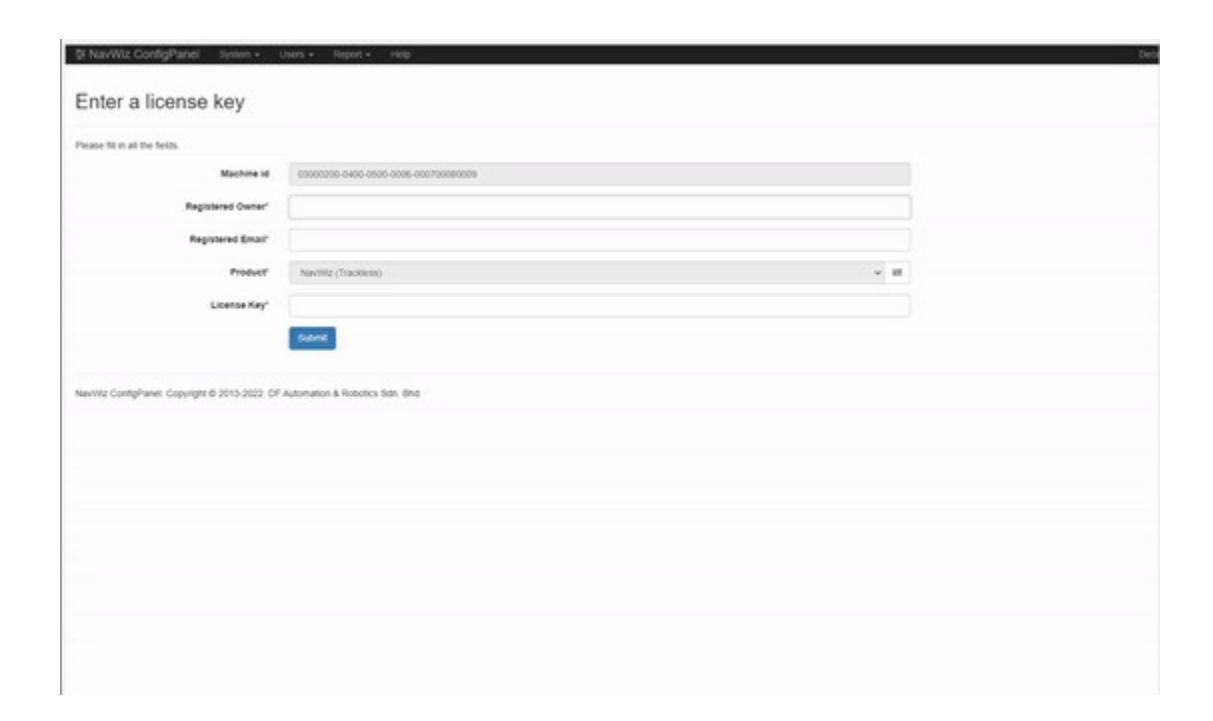
- Click Change License Key.
- You will be presented with a License Key page.
- Open a new tab in your web browser and go to the license generator website at https://license.dfautomation.com
- In the License Generator page, key in following information. a. Description - Describe the purpose of the license b. Machine ID - get the machine id from Navwiz License Key page. c. Owner - Insert customer name d. Email - insert customer email. e. Product - Select type of product. In this example, the license is for NavWiz. f. License type - Select type of license. Either unlimited or trial period.
- Click Generate License. Your license will be generated. Do not close this website because you may need to transfer this license key to your NavWiz to activate it.
- In your NavWiz License Key page, copy and paste the following information from license generator page, a. Registered Owner - Owner in License Generator page b. Registered Email - email in License Generator page c. Product - You can click on the selection key to switch between tracked and trackless. Ensure it's the same type as in the License Generator page. d. License key - Copy the license key generated in the License Generator page.
- Click Submit.
- You will return to the Help page with a green prompt saying that the License Key is updated.