How to Perform Backup & Restore for NavWiz
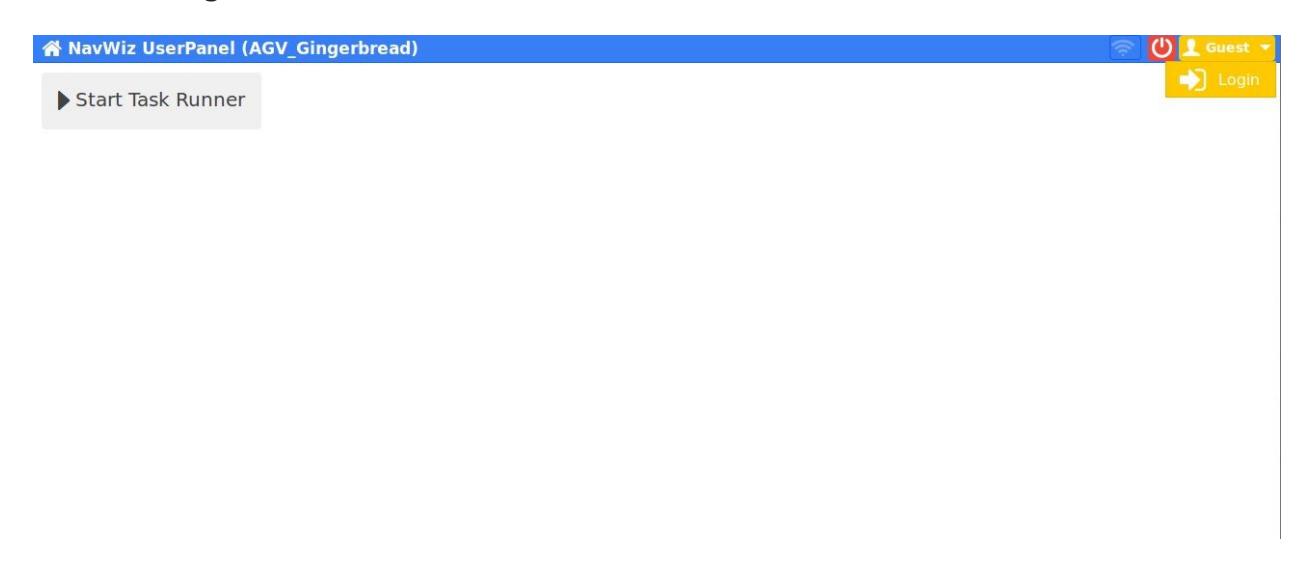
Click on the top right Guest yellow button if AMR is not login yet. Then, click on Login.
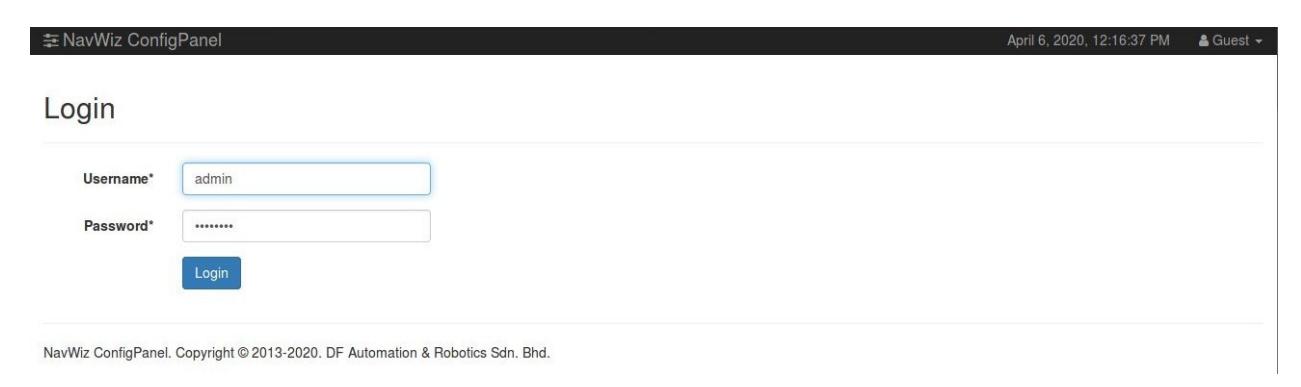
Enter Username: supervisor and Password: dfautomation. Then, click on Login.
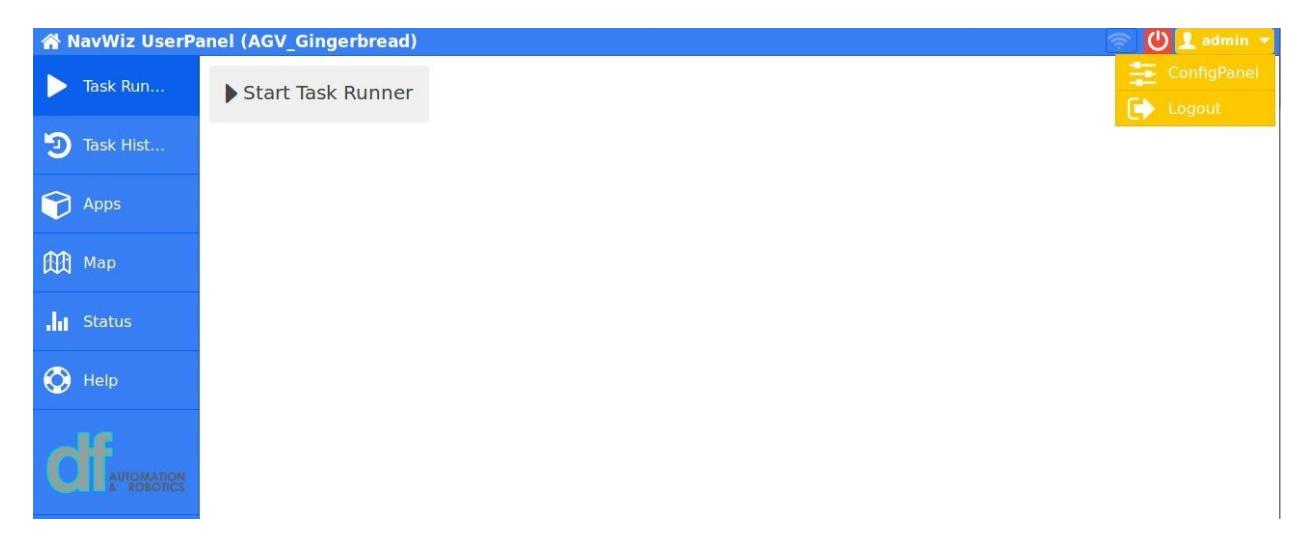
After login, you will be redirected to NavWiz UserPanel. Click on the top right admin yellow button, then ConfigPanel.
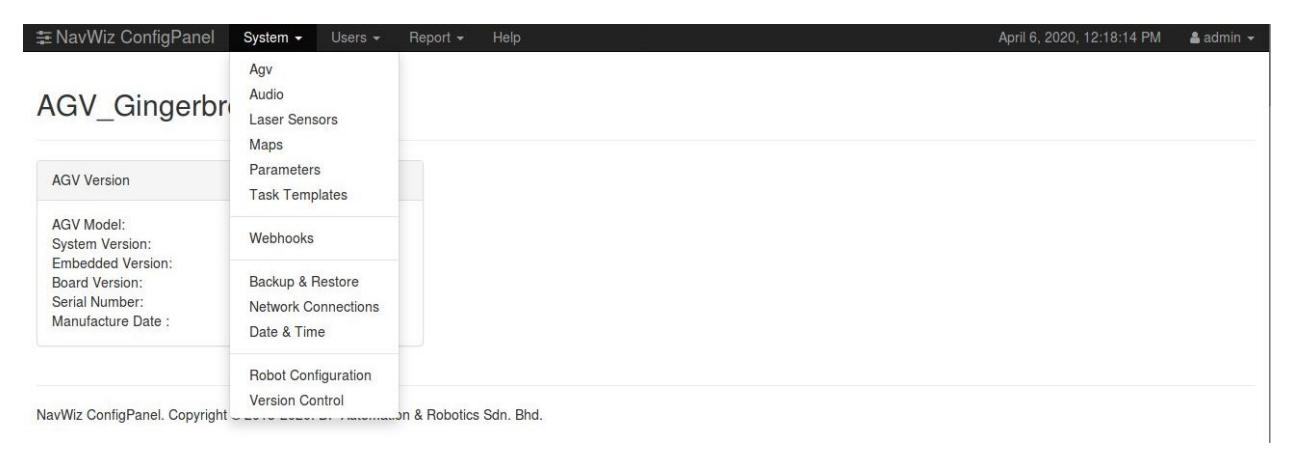
After clicking on ConfigPanel, you will be redirected to NavWiz ConfigPanel. Click on System, then Backup & Restore.
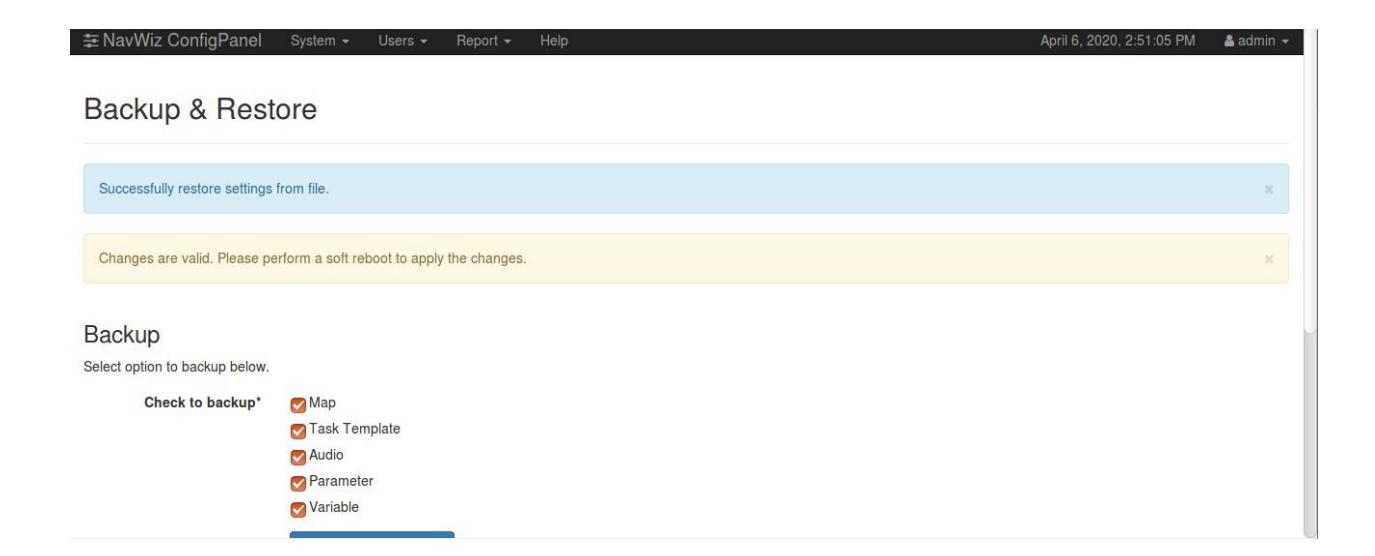
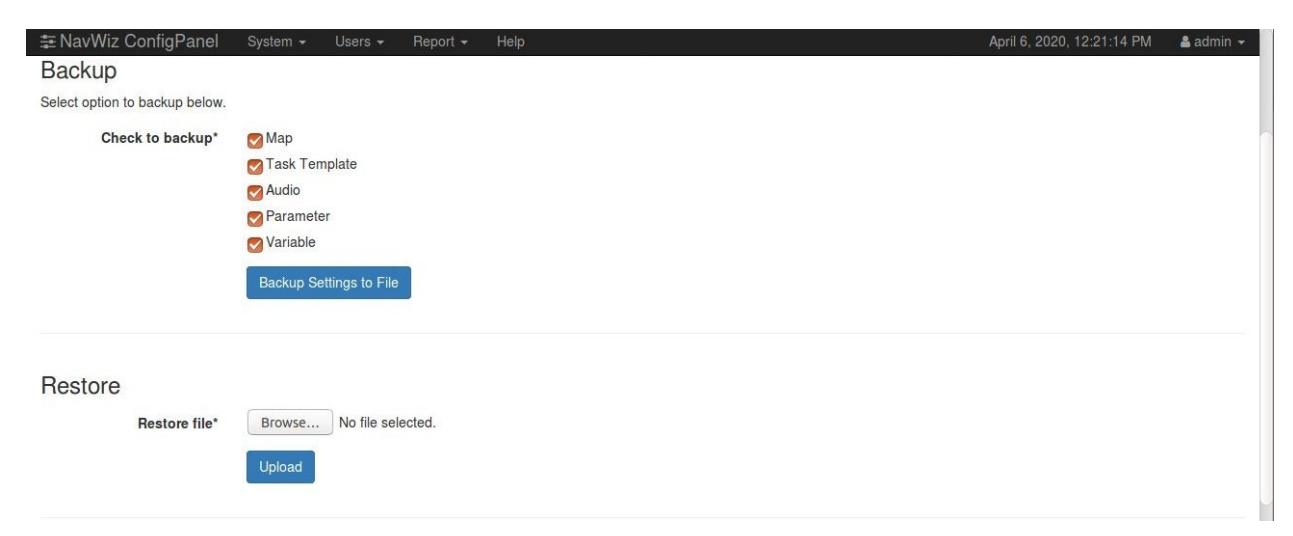
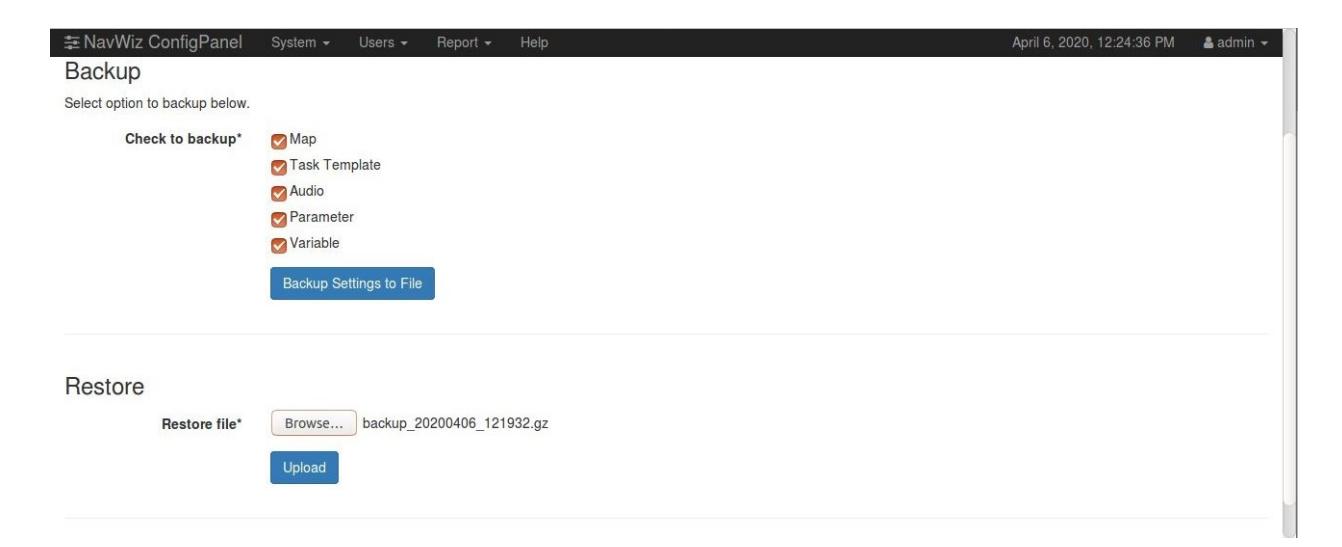
Select the option that you want to backup. Then click the Backup Settings to File, and the backup file will be at your computer's download folder.
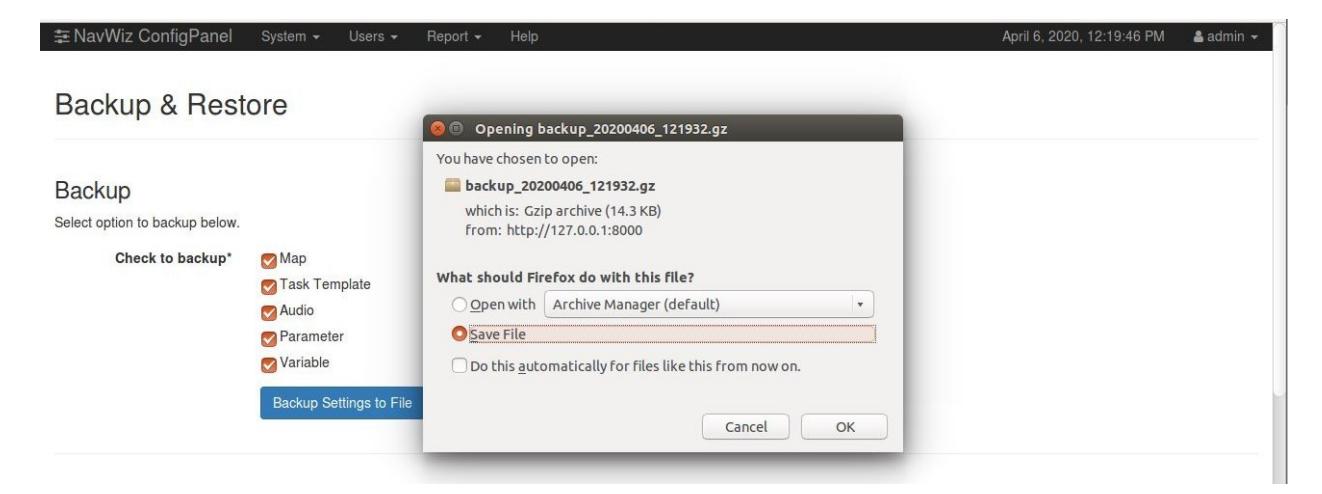
For Firefox browser users, a message might popup asking for your action. Select Save File. Thus, backup is finished.
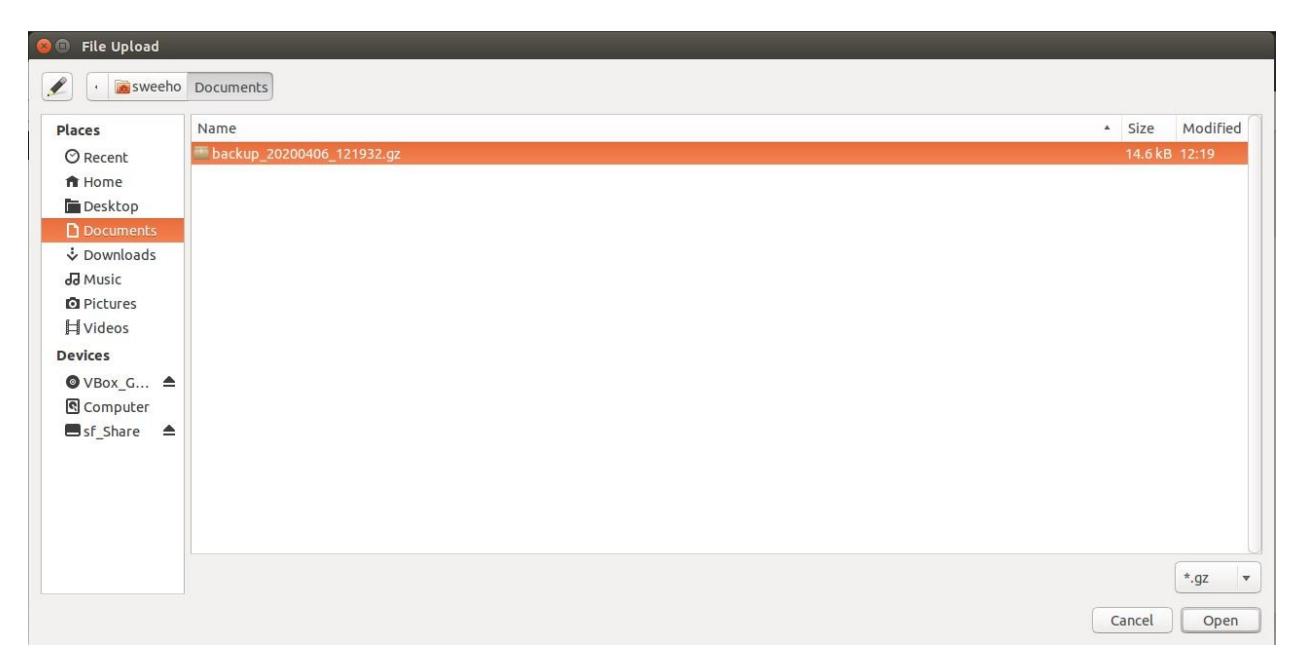
For the restore process, browse to your downloaded backup file, select it and click on open.
Click on the Upload button to upload your backup restore file.
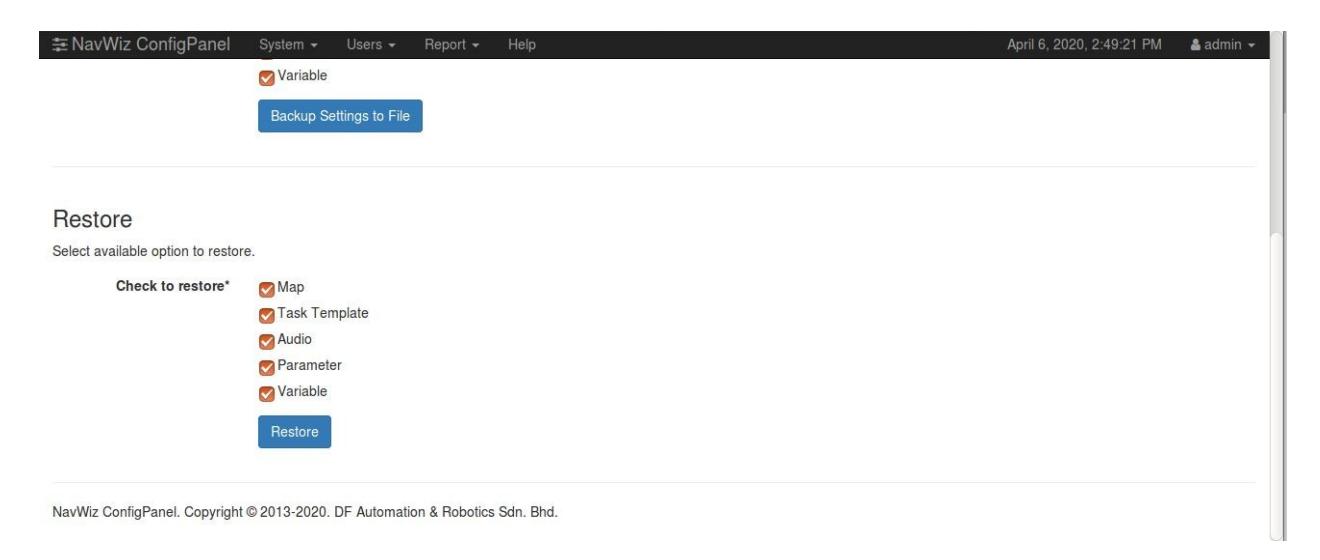
Select the option that you want to restore. Then, click on the Restore button.
After the restore process is finished. Two messages will be displayed on top. First message is to inform that the restoration process is applied successfully. Second message is to inform the change is valid and a soft reboot is required.