
Using the Task Runner
The Task Runner is the primary interface for executing AMR tasks. Before starting, the AMR's position must be initialized.
- Go to the UserPanel and click Start AGV Controller on the boot screen.
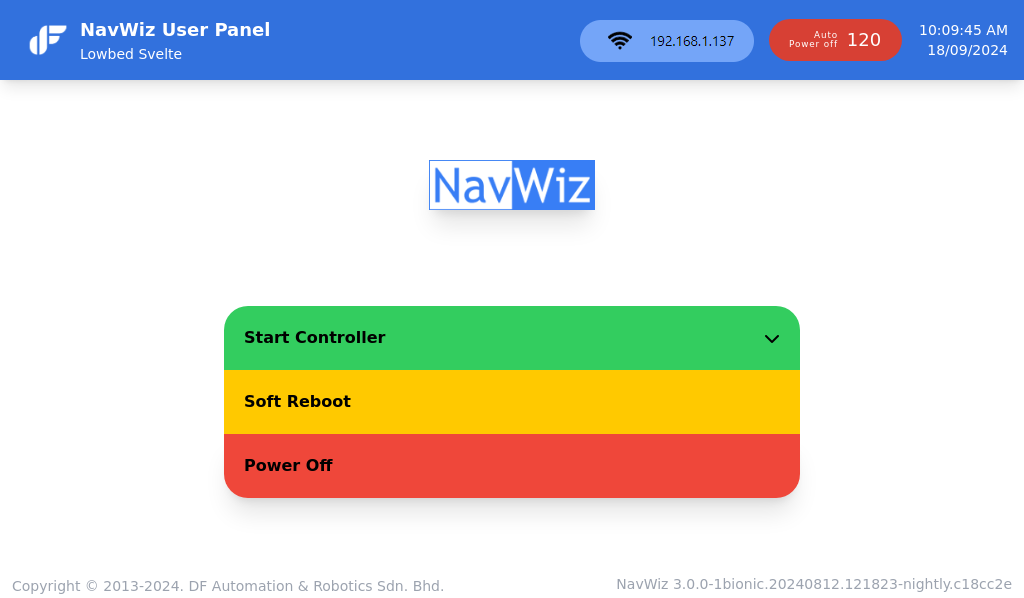
- Click Start Task Runner and select an initialization option to establish the starting position:
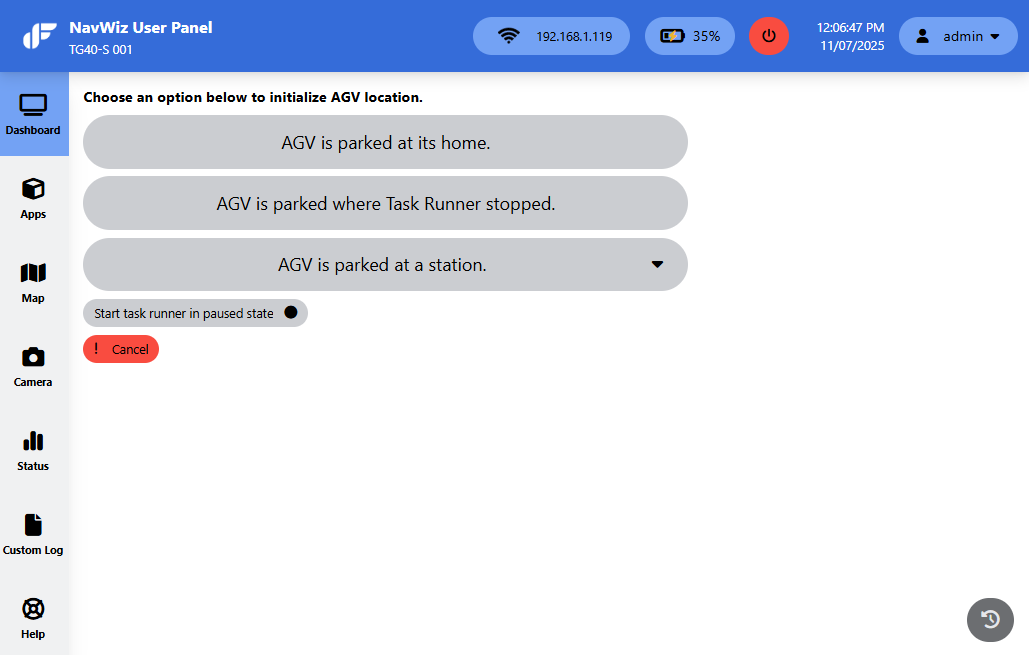
| Initialization Option | When to Use |
|---|---|
| AGV is parked at its home | AMR is already parked at its home station |
| AGV is parked at where Task Runner stopped | AMR's physical location did not change after closing the Task Runner previously |
| Forward dock to charger (tracked) | Forward docking on a tracked path is required for AMR to move to its home station |
| Reverse dock to charger (tracked) | Reverse docking on a tracked path is required for AMR to move to its home station |
| AGV is parked at a station | AMR is already parked at a specific station (not the home station) |
- After initialization, the UserPanel displays available task templates. Click on a task template to add it to the task queue.
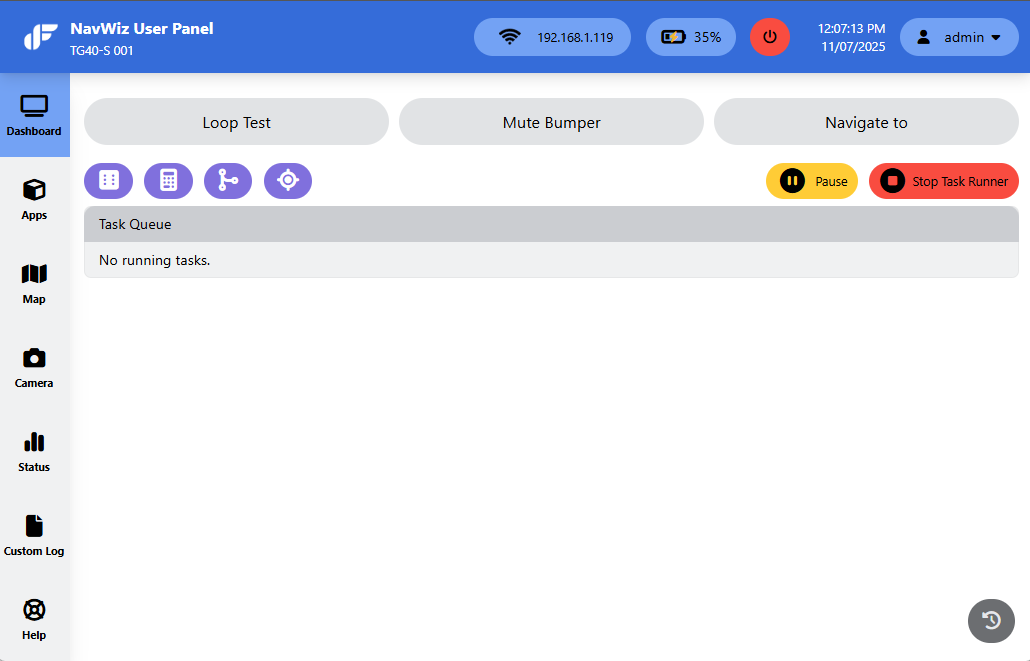
- The first task in the queue executes immediately. Subsequent tasks execute in sequence. Use the up arrow button to prioritize tasks, or the X button to cancel them.
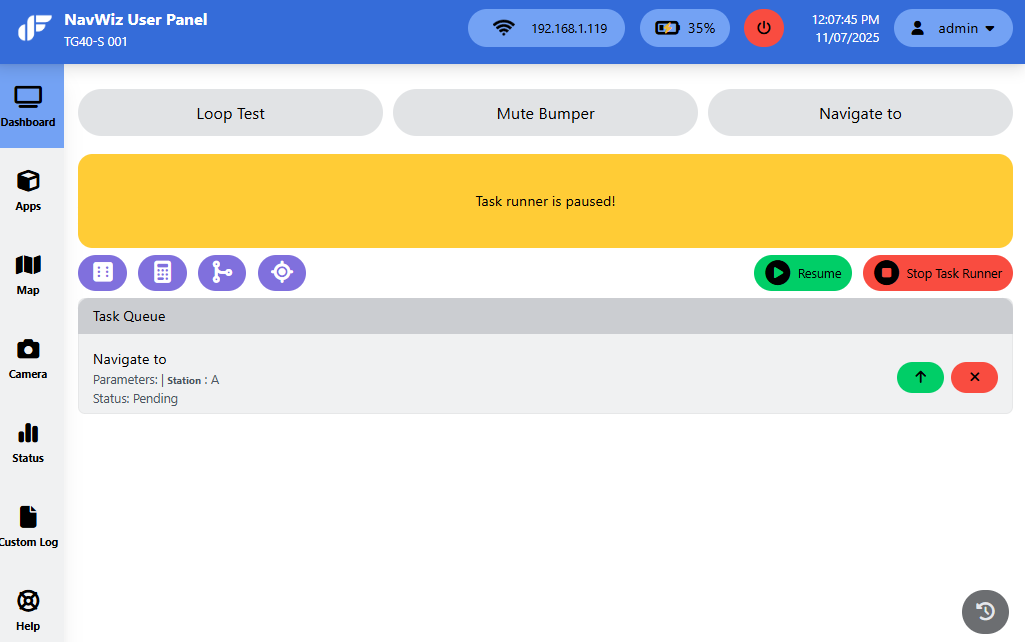
Use the Pause button (yellow) to pause task execution, and the Resume button to continue. Use the Stop button (red) to stop the entire task runner.
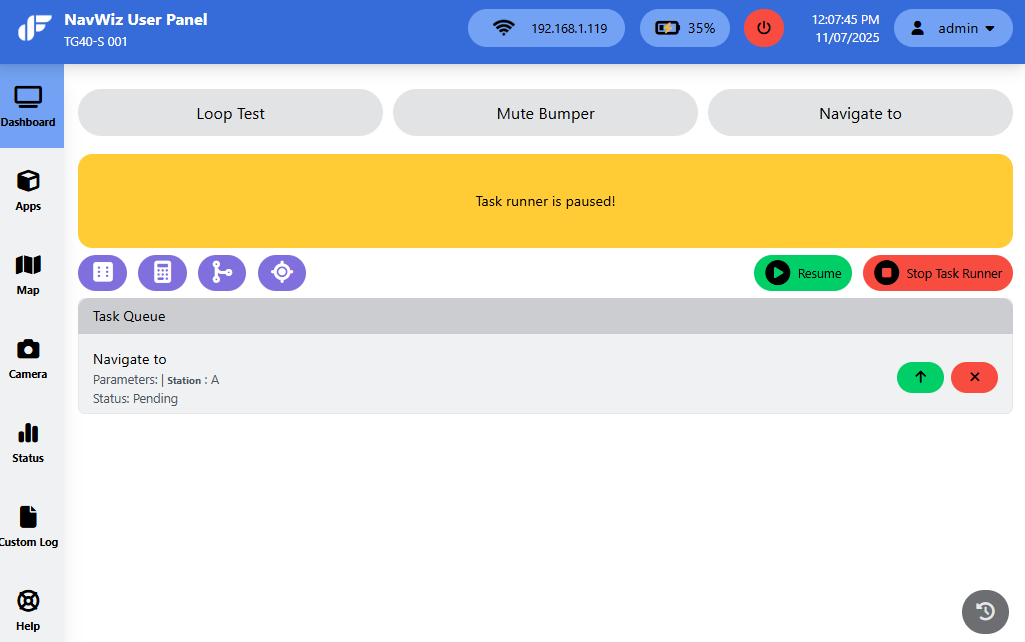
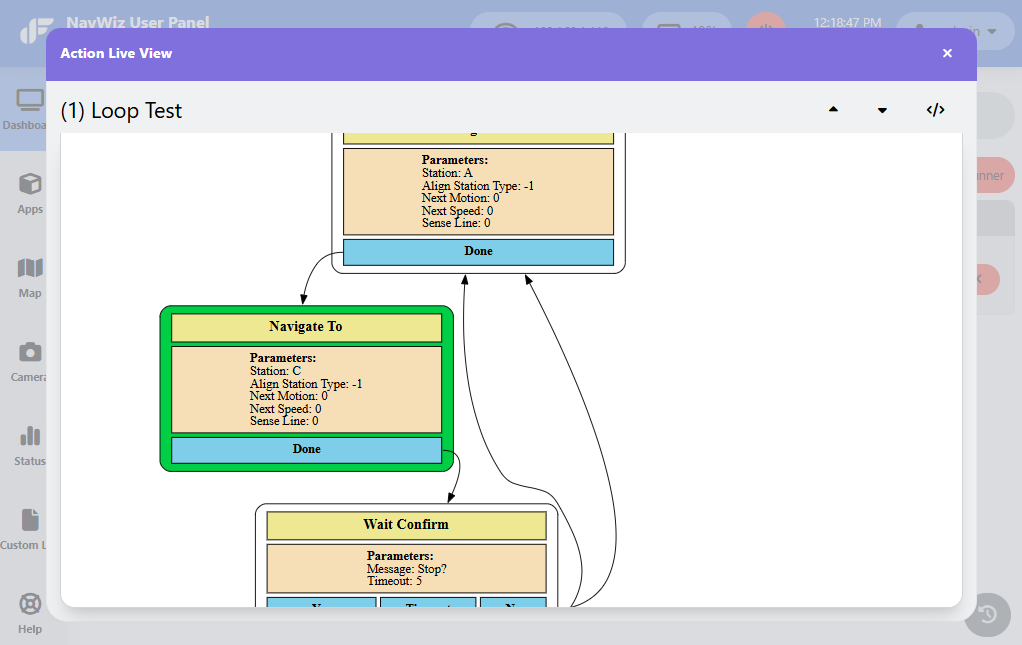
The Task Runner page also provides four additional monitoring features: IO Live View for monitoring input/output signals, Remote IO Live View for remote IO signals, Action Live View for real-time monitoring of current actions being performed, and Set Pose for adjusting AMR position in real-time or manually controlling the robot while the Task Runner is running.
The Task History popup displays the 30 most recently completed tasks.