DF Support DF Support

Download Task History

1 min read · Published May 30, 2026 · DFleet

Download Task History

This guide will walk through step by step to download Task History from NavWiz system

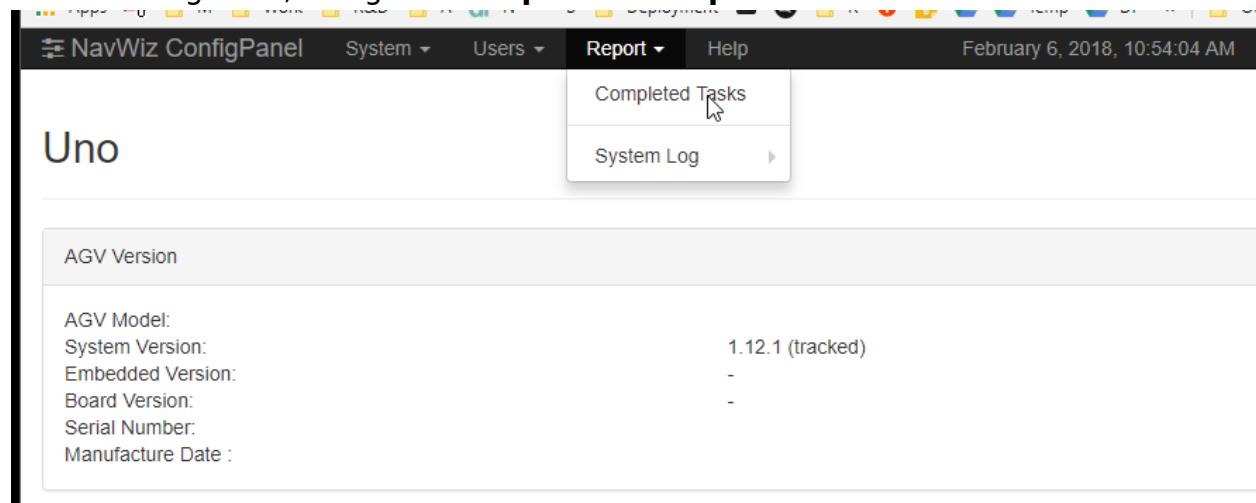
  1. Navigate to ConfigPanel of the NavWiz system. You will need to login using admin or supervisor account.
  2. Under ConfigPanel, navigate to Report > Completed Task:NavWiz ConfigPanel showing AGV system info and Report menu with Completed Tasks option — This screenshot shows the AGV configuration panel with system details and report options for task tracking.
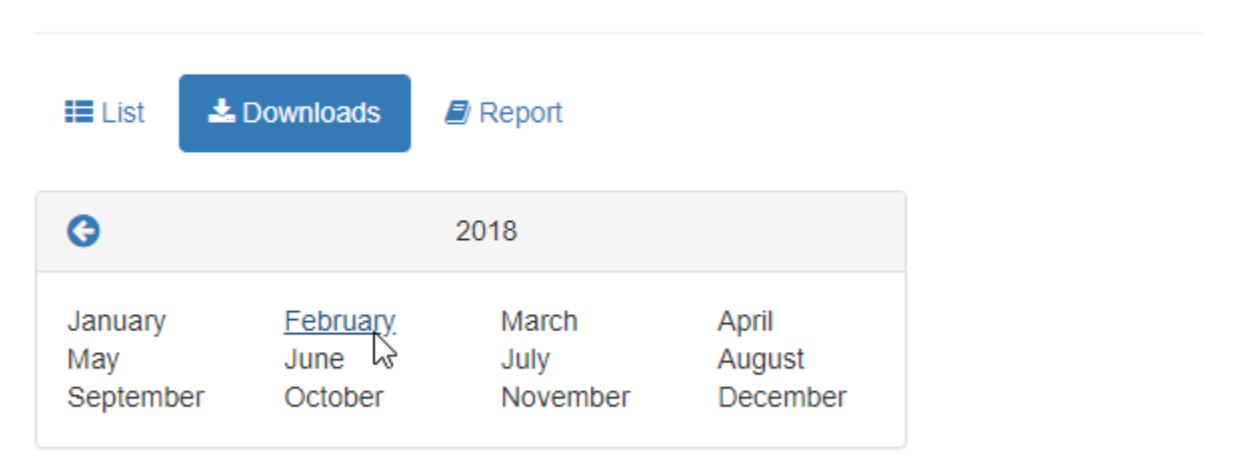
  3. Under Completed Tasks page, you will have access to 3 sub page, List, Downloads and Report. List will show the full list of task executed under NavWiz system, Report show the summarize report of all executed task. To download the task history, go to Downloads subpage and click on the month of where the task history is to be download.Report interface showing monthly navigation with February 2018 selected — The interface allows users to select a month for viewing or downloading reports, with February 2018 highlighted.
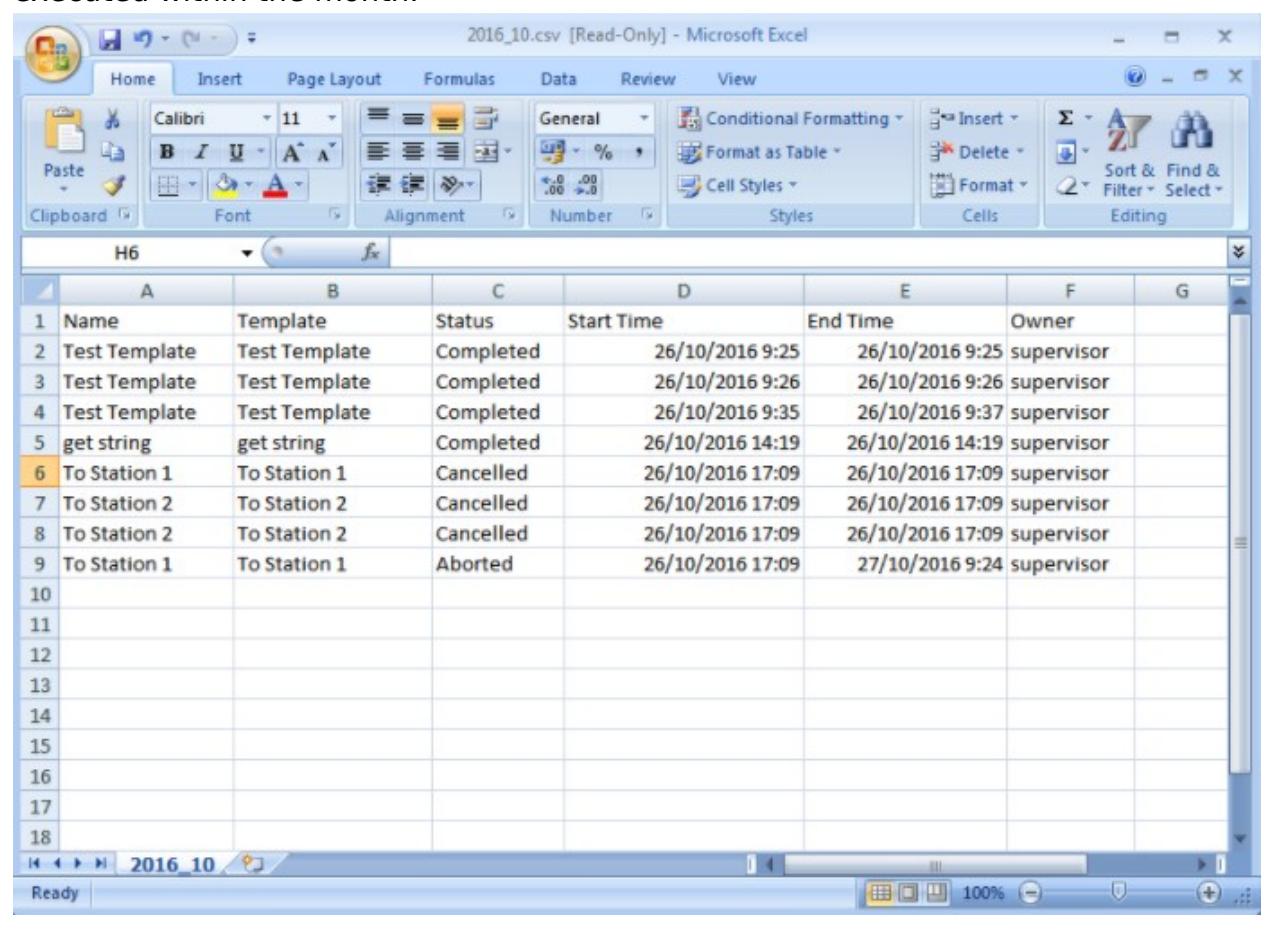
  4. A CSV file will be downloaded to your PC that will show the full list of task executed within the month.Excel spreadsheet displaying task logs with status, start/end times, and owner information — This table logs completed, cancelled, and aborted tasks with timestamps and responsible owners for audit and analysis.

Was this article helpful?

Still stuck? How can we help?

Reach out to our support team on WhatsApp for personalized assistance.

Chat with us on WhatsApp

Updated on September 4, 2026